


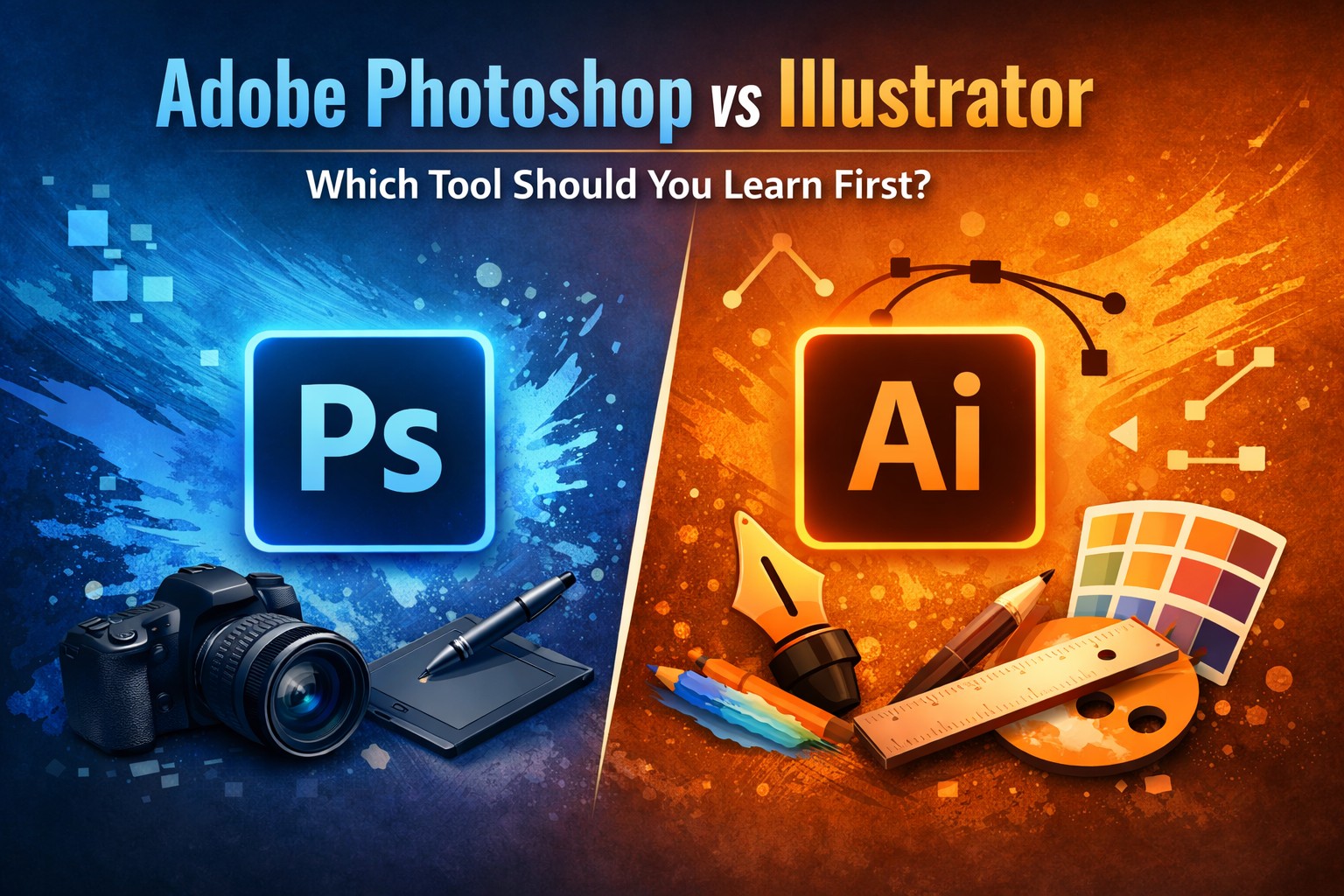
Graphic design is a vast and ever-evolving field, powered by imagination, trends, and the right tools. Whether you’re designing branding materials, social media graphics, illustrations, posters, or web assets, choosing the right software can make a big difference in both ease and outcome. Two of the most iconic design tools in the industry are Adobe Photoshop vs Illustrator — but which one is truly better for graphic design?
In this deep-dive guide, we’ll compare Photoshop and Illustrator across multiple core aspects so you can confidently decide which fits your creative needs.
What Are Photoshop and Illustrator?
Adobe Photoshop and Adobe Illustrator are both flagship tools offered by Adobe Creative Cloud, but they serve different purposes within the design ecosystem.
Photoshop
Originally launched in 1988, Photoshop has become the industry standard for photo editing, pixel-based design, and digital art. Its strength lies in manipulating bitmap images using layers, filters, effects, and advanced brushes.
Illustrator
Introduced in 1987, Illustrator focuses on vector graphics — shapes and illustrations defined by mathematical paths rather than pixels. This allows artwork to scale infinitely without losing clarity, making it perfect for logos, icons, typography, and detailed illustrations.
The Core Difference: Raster vs Vector
Understanding the core difference between raster and vector graphics is essential to comparing these tools:
Raster Graphics (Photoshop)
- Made of pixels (tiny colored dots).
- Resolution-dependent — quality can degrade when enlarged.
- Ideal for detailed images like photos.
- Common formats: JPEG, PNG, GIF.
Vector Graphics (Illustrator)
- Made of paths and anchor points.
- Resolution-independent — scalable without quality loss.
- Perfect for logos, icons, typography, and illustrations.
- Common formats: SVG, EPS, AI.
In essence: Photoshop is best for pixel-rich imagery, while Illustrator excels with clean, scalable graphics.
Adobe Photoshop vs Illustrator: Interface & Learning Curve
Photoshop Interface
Photoshop’s workspace can initially feel overwhelming, especially for beginners. With panels for layers, adjustments, brushes, and filters, mastering the interface takes time but offers enormous creative control.
Pros
- Flexible workspace
- Powerful photo editing tools
Challenges
- Steeper learning curve
- Some tools are buried deep in menus
Illustrator Interface
Illustrator’s interface is cleaner and more approachable for designers focused on shapes and paths. The toolbar is streamlined for drawing, outlining, and typography.
Pros
- Intuitive vector design workflow
- Easier initial learning for beginners
Challenges
- Some advanced tools take time to master
- Less intuitive for pixel editing
Bottom line: Illustrator tends to be easier for newcomers to vector design, while Photoshop appeals to those ready to dig deep into detailed editing.
Tools & Features Breakdown
Let’s compare some of the standout tools of each application.
Photoshop Key Features
- Advanced photo editing
- Layer masks and adjustment layers
- Brush engine with custom brushes
- Filters and effects
- 3D and video capabilities
- Content-aware fill and healing tools
Illustrator Key Features
- Vector shape creation and manipulation
- Pen tool for custom paths
- Live trace and image vectorization
- Advanced typography controls
- Artboards for multiple designs
- Shape builder and pathfinder tools
Photoshop shines in editing and visual effects, while Illustrator dominates in scalable illustration and precise vector control.
Best Use Cases for Photoshop
Photo Editing and Retouching
Whether you’re correcting color, removing backgrounds, or enhancing portraits, Photoshop’s tools are unmatched.
Digital Painting
Artists use Photoshop’s brush engine to create detailed digital artwork resembling traditional media.
Web & UI Design
Photoshop has historically been used for mockups and UI design assets, though newer tools are emerging.
Composite Artwork
Combining multiple images, applying effects, and blending layers make Photoshop the go-to for surreal or composite designs.
Example Projects in Photoshop
- Social media graphics
- Photo manipulation
- Banner ads
- Album covers
- Mood boards
Best Use Cases for Illustrator
Logo Design
Vector logos are essential because they need to be used at various sizes — business cards to billboards — without quality loss.
Icon Design
Icons require precision and scalability, making Illustrator the ideal tool.
Typography & Custom Lettering
Illustrator’s text tools let designers craft and manipulate type into complex compositions.
Infographics and Charts
Clean, sharp graphics with clear lines make Illustrator perfect for data visualizations.
Example Projects in Illustrator
- Brand identities
- Icons and symbols
- Infographics
- Vector illustrations
- Product packaging art
Design Workflow Comparison
Workflow differences reflect the strengths of each tool:
Photoshop Workflow
- Import image or start with blank canvas
- Work with pixel layers
- Apply adjustments, effects, retouching
- Export for web or print
Ideal for artists and photo-centric designers.
Illustrator Workflow
- Start with vector artboard
- Draw shapes with pen and shape tools
- Refine paths, apply colors and gradients
- Save as vector or export for other use
Perfect for designers who need clean, scalable graphics.
Performance & File Management
Photoshop
- Works with large raster files, which can become heavy
- PSD files preserve layers for editing
- Requires ample RAM and storage for complex projects
Illustrator
- Vector files tend to be smaller
- AI and EPS formats maintain editability
- Vector art is often lighter and easier to manage
If performance and storage are concerns, Illustrator often handles intricate design with less strain.
Integration with Other Software
Both Photoshop and Illustrator are part of Adobe Creative Cloud, which means they work well with other Adobe tools:
✔ Adobe XD — for UI/UX design
✔ Adobe InDesign — for layout and publishing
✔ Adobe After Effects — for motion graphics
✔ Adobe Premiere Pro — for video editing
Illustrator’s vector assets often go into InDesign for print layouts, while Photoshop’s images may be used in video or web design.
Pricing & Plans
Adobe no longer sells Photoshop or Illustrator as one-time purchases. Instead, they are subscription-based through Adobe Creative Cloud.
Common Plans
- Photoshop alone — monthly or annual
- Illustrator alone — monthly or annual
- Creative Cloud All Apps — access to all Adobe apps at a bundled price
Pricing can vary by region and plan type (student, individual, business). Subscribing to both apps is a popular choice for designers who need versatility.
Pros and Cons Summary
Here’s a quick comparison:
| Feature | Photoshop | Illustrator |
| Graphic Type | Raster | Vector |
| Scalability | Limited | Infinite |
| Photo Editing | ⭐⭐⭐⭐⭐ | ⭐ |
| Illustration | ⭐⭐⭐⭐ | ⭐⭐⭐⭐⭐ |
| Typography | ⭐⭐ | ⭐⭐⭐⭐ |
| Learning Curve | Moderate | Beginner-Friendly |
| File Size | Larger | Smaller |
| Best For | Photos, composites | Logos, icons, vectors |
Which Software Should You Choose?
Your choice between Photoshop and Illustrator ultimately depends on your project needs:
Choose Photoshop If
- You’re working with photos
- You want digital painting capabilities
- Your designs rely on texture and effects
- You need advanced retouching tools
Choose Illustrator If
- You need scalable vector art
- You’re designing logos, icons, typography
- You want clean shapes with crisp lines
- You need lightweight, flexible artwork
Pro tip: Many designers use both tools together — Illustrator for vector artwork and Photoshop to finalize visuals or add depth.
Conclusion
So — Adobe Photoshop vs Illustrator: which is better for graphic design?
The honest answer is: it depends. Both are powerful, industry-standard tools with unique strengths:
Photoshop excels at pixel editing and creative manipulation.
Illustrator shines in vector art and scalable design.
Rather than thinking in terms of “better,” the wiser approach is to understand which is best for the task at hand. For photographers, digital artists, or anyone working with detailed imagery — Photoshop is indispensable. For logo designers, illustrators, and branding professionals — Illustrator is a must-have.
And if you really want to be a well-rounded graphic designer? Learning both will give you maximum creative flexibility.
FAQs
Is Photoshop better than Illustrator for graphic design?
Photoshop is better for photo-based and raster designs, while Illustrator is ideal for vector graphics like logos and icons. Neither is universally better; the right choice depends on the design project.
Can I design logos in Photoshop instead of Illustrator?
You can design logos in Photoshop, but it’s not recommended. Logos need to be scalable, and Illustrator’s vector format ensures quality at any size without pixelation.
Which is easier to learn: Photoshop or Illustrator?
Illustrator is generally easier for beginners focused on shapes and typography. Photoshop has a steeper learning curve due to its advanced photo-editing and layer-based features.
Do professional graphic designers use both Photoshop and Illustrator?
Yes, most professional designers use both tools together. Illustrator is used for creating vector designs, while Photoshop is used for image editing and visual enhancements.
Is Illustrator good for web and social media graphics?
Illustrator is great for creating icons, illustrations, and vector assets for the web. However, Photoshop is often preferred for photo-heavy social media posts and banners.
Should beginners learn Photoshop or Illustrator first?
Beginners should start with Illustrator for basic graphic design and logo creation. Learning Graphic Design Course helps expand skills into photo editing and digital artwork.